
Color Tabs
Color-coded Revit tabs by document
See which project or family every open Revit tab belongs to at a glance. BIMO marks tabs from the same document with the same automatically assigned color.
✓
One color for tabs from the same document
✓
Projects and families are easier to distinguish
✓
No palettes or rules to configure
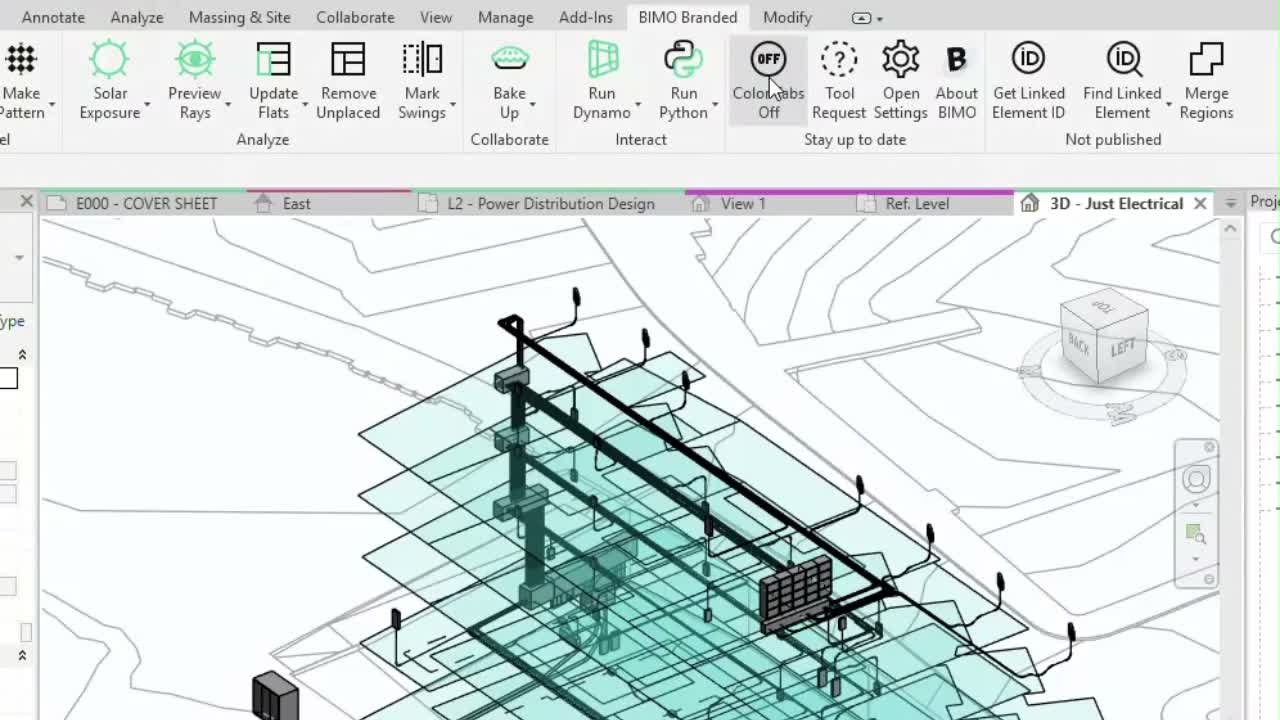
See Color Tabs in action
Tabs from the same Revit document share a color, while different documents are visually separated without changing the tab background.
Navigate open Revit documents faster
When several projects, families and views are open, color becomes a quick document-level orientation cue.
One document, one visual group
Plans, sections, 3D views and other tabs from the same document receive the same color so related views are easier to recognize.
Projects and families stand apart
Project tabs use a thin top stripe, while family documents use a slightly thicker stripe, adding another cue when both are open.
Automatic colors
BIMO assigns colors automatically. There is no palette, matching rule or per-document setup to maintain.
Works in the background
Turn it on once and keep working in Revit as usual.
01
Enable Color Tabs from the BIMO ribbon
02
Open projects, families and views as you normally do
03
BIMO refreshes the tab grouping as documents and active views change
A small UI improvement that helps every day
Color Tabs adds orientation without adding another window, configuration workflow or model dependency.
The Revit model is untouched
Color Tabs changes only the tab presentation in the Revit interface and does not write anything to the model.
An extra active-document check
The color grouping gives you another visual hint before working in or modifying a document, while the tab name remains the final check.
Your preference is remembered
BIMO remembers whether Color Tabs is enabled, so the visual grouping can remain part of your normal Revit workspace.
Use Read documentation for toggle behavior, refresh details and notes about Revit UI states.
Want to give it a try?
We'll reach out and help you get started