You need a BIMO license key and internet access. Activation is completed directly in Autodesk Revit.
1. Open About BIMO
Open the BIMO ribbon tab in Revit and select About BIMO.
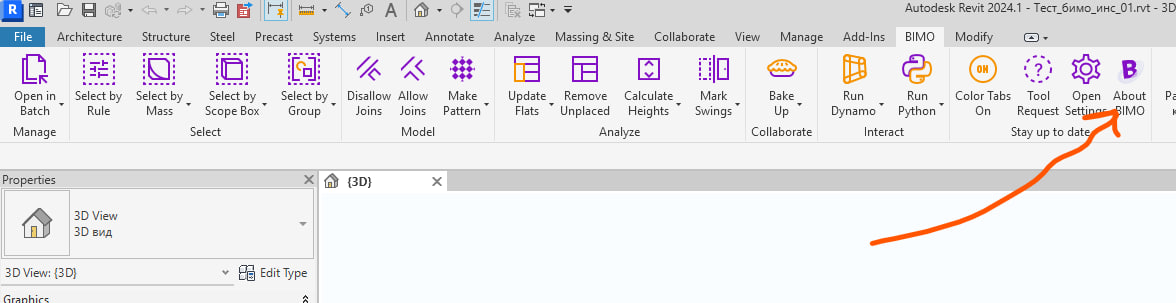
2. Open the activation screen
In the BIMO | About window, select UPGRADE.
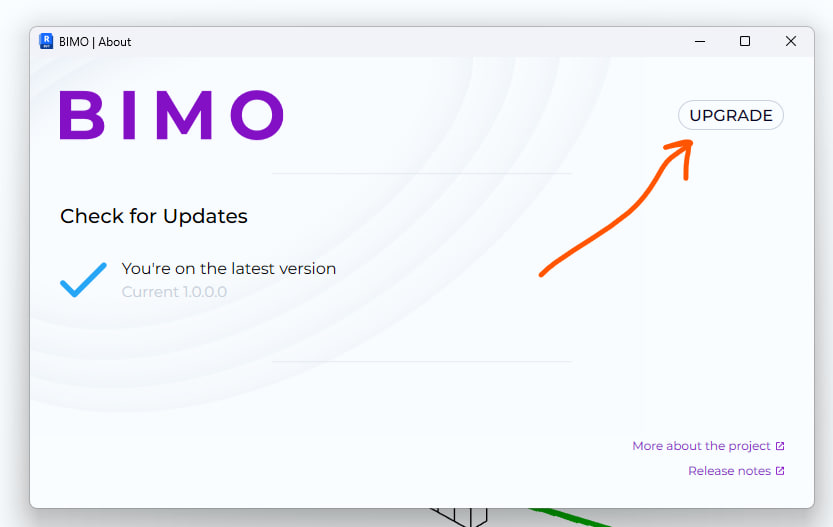
3. Enter the license key
Enter the supplied key in Enter license key, then select ACTIVATE.
Wait for the confirmation message:
Congratulations! Your license has been activated.
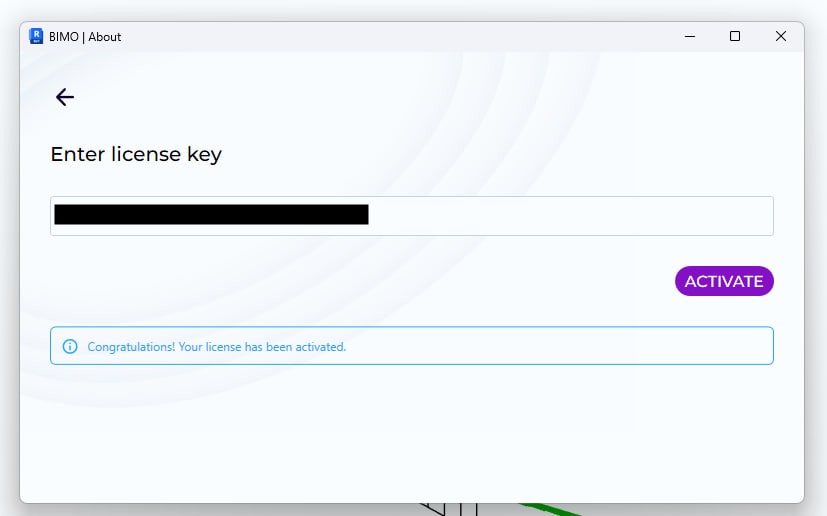
4. Restart Revit
After successful activation:
save all open projects;
close every running Autodesk Revit session;
start Revit again.
The restart is required so the available commands, subscription plan, and workspace branding are applied correctly.
The key does not activate
Check that:
the full key was entered without extra spaces;
the computer has internet access;
a company firewall or proxy does not block the
bimo.toolsservices;Windows date and time are correct.
Do not send license.json to another user. The file is protected by Windows and is tied to the current Windows account.
Contact BIMO support if the problem continues.